

This is our complete, repeatable process for rolling out mi.team correctly. We recommend every business or MSP follows these steps in order, so that nothing is missed and nothing needs to be explained after the fact.
We are also building this into a guided, automated assistant within the mi.team platform, so that you will eventually be able to work through this process in-app rather than following an article. This is not yet available, and this article remains the authoritative process in the meantime.
Once you or your IT team have set up your mi.team account, you can follow this process to deploy mi.team within your organisation. If you do not yet have an account, start your free trial to get set up first. MSPs signing up on behalf of clients should use the MSP sign-up instead.
You can jump to any step using the contents list to the right. It is not necessary to read this from the beginning if you already know which step applies to you.
Before You Start: Confirm Your Lawful Basis
For almost every business, this is a confirmation rather than a decision. Legitimate interests is the lawful basis that applies to standard productivity monitoring. Consent is rarely valid within an employment relationship, and the remaining UK GDPR bases do not apply to this type of processing.
If your circumstances differ from a standard rollout, please read the full explanation first: Is it Legal to Track Staff Productivity in the UK?
Your Rollout Details
Please complete the details below once. They are used automatically in the generators for each step, so there is no need to enter them more than once.
Step 1: Decide Your Settings Model
mi.team provides login access to everyone by default, including individuals not yet assigned to a team. This can be disabled for a specific team where there is a genuine, exceptional reason to do so, such as an active investigation, but for a standard rollout it should remain enabled.
The genuine decision to make at this stage is your team structure. We recommend grouping staff by department for manager oversight, and considering whether a company-wide team is appropriate for organisation-wide visibility. Team membership stacks rather than replaces, so this does not affect any existing department-level oversight.
For guidance on setting this up, see How to Create Teams, Add Members, and Add Managers in mi.team.
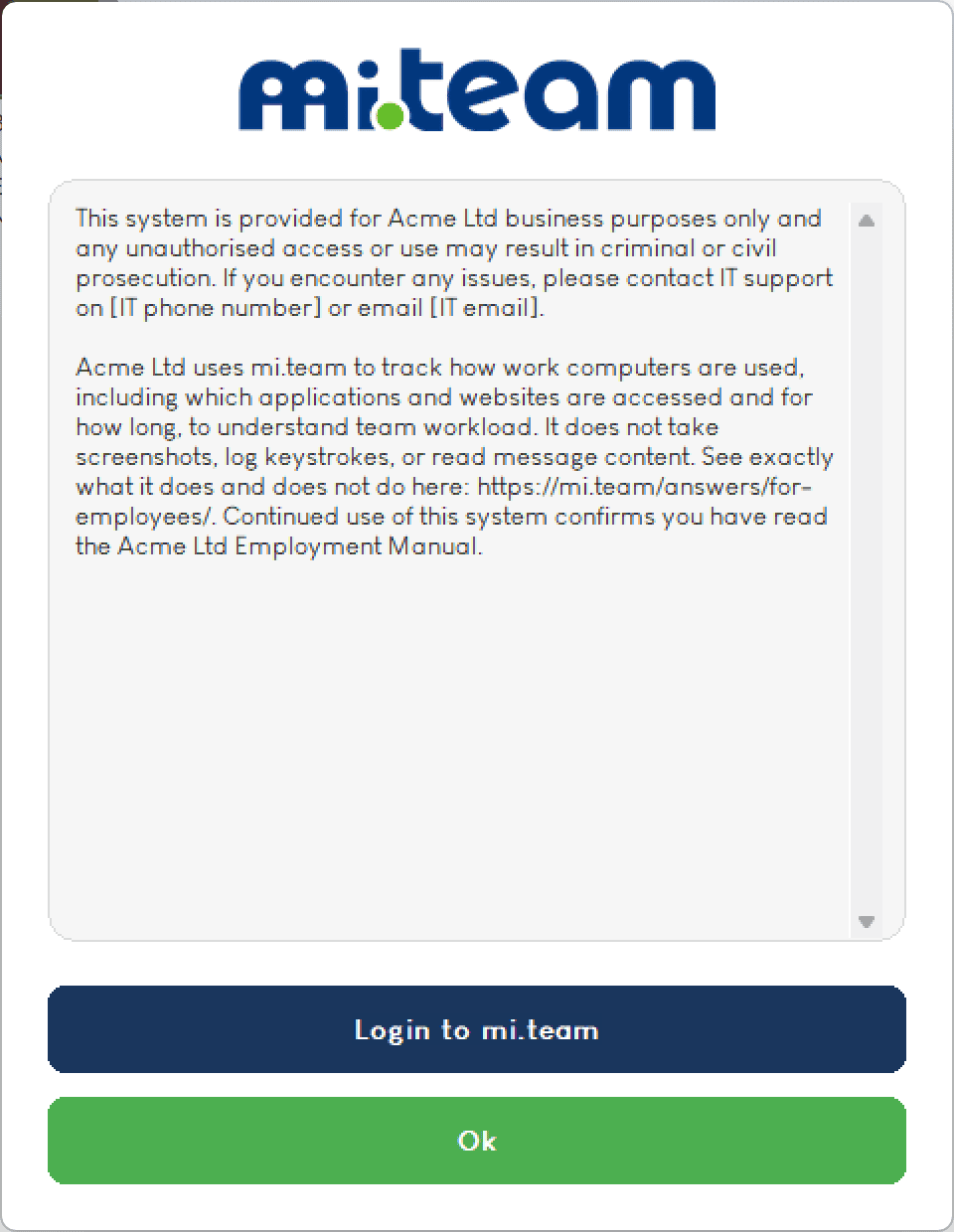
Your disclaimer wording, generated from the details provided above:
Please paste the generated text into mi.team’s Startup Agreement settings, under Window Text.
Step 2: Brief Your Managers
Managers should hear about mi.team before their own teams do. This gives them time to understand the tool, and to understand the additional visibility they will have over their team’s individual activity, before staff start asking them questions about it.
The selections below are used for both this manager briefing and the company-wide communication in Step 3, so there is no need to enter them twice.
Login access for this rollout:
Reasons to include (select 1 to 2 genuine reasons):
Step 3: Send the Company-Wide Communication
This uses the same reasons and login setting selected in Step 2, so managers and staff hear a consistent message.
Please copy the text, review it, and send it to your team. For the full explanation of this step, including why it is generally more effective when sent directly from IT, see How Do I Tell My Team About mi.team Without It Sounding Like Surveillance?
It is also worth including a screenshot of the disclaimer pop-up in this communication, so staff know what to expect when they first see it:
Step 4: Complete the DPIA
Your DPIA should reference the communication sent in Step 3, so this step follows it rather than preceding it. Download the pre-completed template, then use the summary below to complete the small number of genuine blanks that remain.
Access the template, in web and downloadable Word formats: DPIA Template for Employee Monitoring
The communication date entered in Step 2 is used automatically below.
The Purpose field within the full DPIA below updates automatically to reflect the reasons selected in Step 2, so there is no need to complete it separately.
View the full pre-completed DPIA (select to expand)
This reflects the same content as the downloadable version above, shown here for reference. We would still recommend downloading the Word version for proper storage and record-keeping.
Data Protection Impact Assessment
Subject: Introduction of mi.team productivity and device monitoring software
| Organisation | [Organisation name] |
| Completed by | [Name / role] |
| Date completed | [Date] |
| Reference | [e.g. DPIA-2026-01] |
Step 1: Identify the Need for a DPIA
[Organisation name] is introducing mi.team, productivity and device monitoring software, on company-owned devices used by [all staff / department name]. This involves systematic monitoring of employee activity, which the ICO identifies as processing likely to require a DPIA.
Step 2: Describe the Processing
Nature: mi.team records which applications and websites are used, and for how long, on company devices, categorised automatically into productive, unproductive, and neutral time. It does not take screenshots, log keystrokes, or record audio or video at any point. Activity identified as personal or private is automatically redacted by mi.team’s Privacy AI before it is visible to anyone, including managers.
Scope: Applies only to company-owned devices, during all hours the device is in use. This includes time outside standard working hours, so that effort outside the normal working day is also visible where relevant. This does not apply to personal devices under any circumstances.
Context: Managers were briefed in advance, followed by a company-wide communication sent on [date], explaining clearly what is and is not collected. This was sent before mi.team was installed on any device.
Purpose: This monitoring is being introduced to understand team workload distribution, identify where processes or tools are creating inefficiency, support fair and evidence-based flexible or hybrid working arrangements, and maintain basic device security oversight, including patch status, firewall configuration, and encryption.
Step 3: Consultation
Managers were briefed in advance, and staff were informed via a company-wide announcement on [date], with the opportunity to raise questions with [named contact/role]. No formal consultation with a staff representative or union body was required for this rollout.
If your organisation has a recognised staff representative body or union, please amend the above to record the date and nature of that consultation instead.
Step 4: Assess Necessity and Proportionality
Lawful basis: Legitimate interests (UK GDPR Article 6(1)(f)), assessed against the three-part test:
- Purpose: the business reasons documented in Step 2 above are genuine and specific to this organisation, not generic.
- Necessity: less intrusive alternatives, such as manual timesheets or ad-hoc check-ins, were considered and found to be less accurate and more time-consuming. Screenshot-based or keystroke-based tools were ruled out as disproportionate, given that equivalent insight is achievable without them.
- Balancing: the business need is assessed as outweighing the impact on staff privacy, given the safeguards described in Step 6 below, including the absence of screenshots or keystroke logging, automatic redaction of private activity, and restricted default visibility.
Step 5: Identify and Assess Risks
For a standard mi.team rollout using our recommended settings, the baseline risk profile is low throughout. The table below reflects this starting point; please adjust any row where your organisation’s circumstances genuinely differ.
| Risk | Likelihood | Severity | Overall risk |
|---|---|---|---|
| Personal or private data inadvertently captured | Low | Medium | Low |
| Data retained longer than necessary | Low | Low | Low |
| Unauthorised internal access to monitoring data | Low | Medium | Low |
Step 6: Measures Already in Place to Reduce Risk
- Personal or private data capture: mi.team’s Privacy AI automatically identifies and redacts personal or private activity before it is visible to anyone, including managers. No screenshots or keystroke logging are collected at any point, removing the primary source of this risk by design rather than by configuration.
- Staff communication: managers were briefed ahead of the wider team, and monitoring was communicated transparently before rollout, with a clear explanation of what is and is not collected, rather than being introduced without notice.
- Retention: data retention is set to [X months/years], in line with [organisation]‘s data retention policy.
- Access control: by default, staff who are not grouped into a shared team can see only minimal presence information about colleagues, such as devices, last active, member since, and top categories, and not productivity data. Full overview visibility, including productivity trends and time breakdown, is limited to those sharing a team. Full individual activity logs are limited to that team’s managers, and privacy-redacted content remains hidden regardless of role.
Step 7: Sign-Off and Record Outcomes
| Item | Name | Date | Notes |
|---|---|---|---|
| Measures approved by | |||
| Residual risk approved by | |||
| DPO advice provided (if applicable) | |||
| Consultation responses reviewed |
If your risk assessment in Step 5 results in a higher rating than the standard baseline above, and this cannot be reduced further, you are required to consult the ICO before proceeding. Please do not omit this step on the assumption that it is unlikely to apply.
This template provides a properly structured, largely pre-completed starting point, following the ICO’s own DPIA process. It is not a substitute for legal advice specific to your organisation. For anything genuinely high-risk or borderline, we would recommend it is reviewed by a solicitor before you rely on it.
Step 5: Deploy
Select whichever of the seven supported deployment methods best fits your existing environment, pilot it on a small group first, then proceed to a full rollout. If you are unsure which method is appropriate for your setup, we would recommend speaking with your IT professional or provider to determine the right approach for your organisation.
Full technical guide: How to Install mi.team Silently
Step 6: Confirm and Follow Up
Once deployment is complete, check that the dashboard shows every device reporting in as expected. If a device is missing, this is far easier to identify and resolve immediately than to discover several weeks later.
Once enrolment is confirmed, send a short follow-up communication to confirm the rollout is complete and remind staff exactly how to access mi.team on their own device.
Login access for this rollout:
Please attach or embed this image so staff can see exactly where to look:

Summary
Followed in this order, each step either references or builds upon the one before it. Managers are briefed before the wider team, the DPIA references the communication that followed, and nothing is deployed before staff have been informed. Departing from this order, rather than simply omitting a step, is generally where rollouts encounter difficulty.
