

Teams are how mi.team controls who can see what — they’re not just an organisational label, they’re the actual permission structure behind visibility. This guide covers what teams do, the difference between a member and a manager, and how to set them up properly.
What Teams Actually Control
Two roles exist within a team, and they see different things:
- Team members share their productivity overview, top websites, and top applications with the rest of the team. It works both ways — you see the same headline data about your teammates that they see about you.
- Team managers see more: the full individual activity log for each team member — what application or website was open, when, and for how long. As with every other view in mi.team, anything flagged as personal or private stays hidden, even from a manager.
Being a manager doesn’t automatically mean you’re also sharing your own data with the team the way a member does — managers need to be added as a member too if you want their own overview visible to the rest of the team on the same basis as everyone else’s.
The Default Teams
When your mi.team account is set up, six teams are created automatically:
- Leadership
- Human Resources
- Finance
- Sales and Marketing
- Operations
- Customer Services
These are a starting point, not a fixed structure — rename them, delete the ones you don’t need, or add your own to match how your organisation is actually structured.
Quick Method: Assigning Unassigned Users
The Teams page flags anyone not yet in a team under Unassigned Users at the top. Rather than opening each team individually, you can right-click a name in that list to get a quick menu — choose Assign to member or Assign to manager, then pick the team from the list that appears. This is the fastest way to clear the Unassigned Users list down after a fresh rollout.

How to Add or Remove Members and Managers
- Go to Settings → Teams.
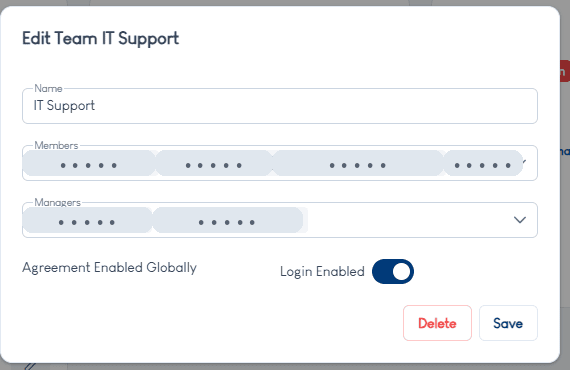
- Find the team you want to edit and click the pencil/edit icon on its card.
- In the Members field, add or remove people — anyone added here will share their overview with the rest of the team.
- In the Managers field, add or remove people — anyone added here can see the full individual activity log of every member in this team. Remember to also add them as a Member if you want their own data shared back to the team.
- Use the Agreement and Login toggles on the same screen to control the disclaimer pop-up and login access for this specific team, overriding the global default where needed.
- Click Save.
People Can Belong to More Than One Team
Team membership stacks rather than replaces — someone can be a member of Marketing and a manager of IT Support at the same time, and they’ll get the combined visibility of both. This is useful for people who genuinely sit across more than one function, rather than forcing an artificial single-team choice.
Getting Company-Wide Visibility
Teams only share data within themselves by default — Marketing doesn’t see Finance’s overview, and vice versa. If you want everyone in the organisation to see everyone else’s headline data, the way to do that isn’t a special setting — it’s creating a team (call it “Company,” or anything else) and adding every employee to it as a member. Because membership stacks, this doesn’t cost anyone their existing team-level manager oversight; it just adds an extra layer of visibility on top.
A Practical Starting Point
For most businesses, a sensible structure looks like:
- Keep the default department-based teams (or rename to match your actual structure), with each department’s manager added as both a member and a manager of their own team.
- Add a company-wide team if you want organisation-level transparency, on top of department-level oversight.
- Use the per-team Agreement/Login override only for genuine exceptions — not as a general privacy setting.
This is Step 2 of our full rollout process. See How to Deploy mi.team: The Complete Rollout Process for how team structure fits into the wider deployment.
