

Yes, you can delete both users and devices in mi.team. Deleting a user or device permanently removes all of the data held against it, so it is worth reading the short section below before you start.
Typical reasons for deleting include a member of staff leaving the organisation, a laptop being retired or replaced, or a test device that was enrolled during setup and is no longer needed.
Who can delete users and devices
Deleting is restricted to mi.team accounts with the appropriate role or permission. This is deliberate, as a deletion cannot be reversed and should only be carried out by someone with the authority to do so.
If you follow the steps below and the Delete option does not appear, your account does not currently have this permission. Please speak to your organisation’s mi.team administrator, who can either carry out the deletion for you or review your access.
Before you delete
There are two points to be aware of before deleting a user or device.
Deletion is permanent. All data for that user or device is removed and cannot be recovered. If your organisation has a data retention policy, please check that it allows the data to be removed at this point.
A user or device will be recreated if it comes back online. mi.team automatically picks up any user or device running the mi.team software. If a deleted user signs in again, or a deleted device is switched back on with the software still installed, it will reappear in mi.team and tracking will restart from that point.
For this reason, if a device is being retired or reassigned, we recommend removing the mi.team software from it before deleting it in mi.team.
How to delete a user
- Select Users from the menu on the left-hand side.
- Click on the user you want to delete to open their profile.
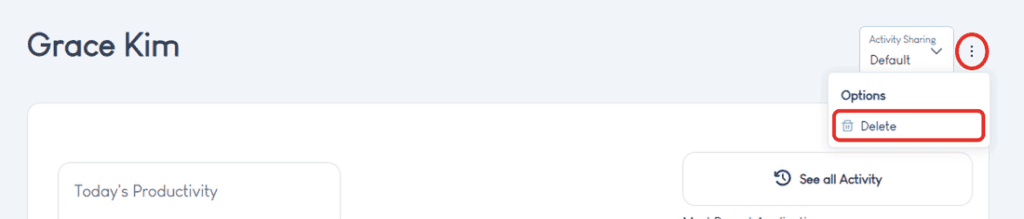
- Click the three dots (⋮) in the top right corner of the page, next to the Activity Sharing setting.
- Under Options, select Delete.
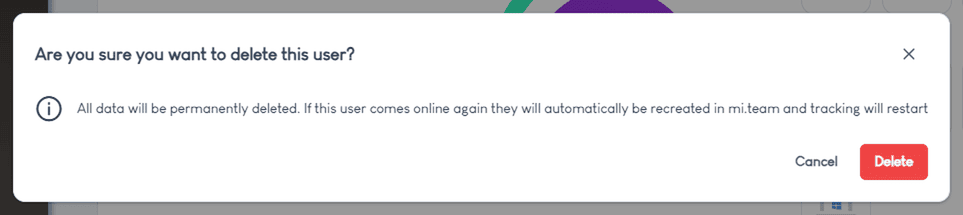
- A confirmation box will appear asking “Are you sure you want to delete this user?”. It explains that all data will be permanently deleted, and that the user will be recreated automatically if they come online again.
- Click Delete to confirm, or Cancel to return to the profile without making any changes.
How to delete a device
- Select Devices from the menu on the left-hand side.
- Click on the device you want to delete to open its details page.
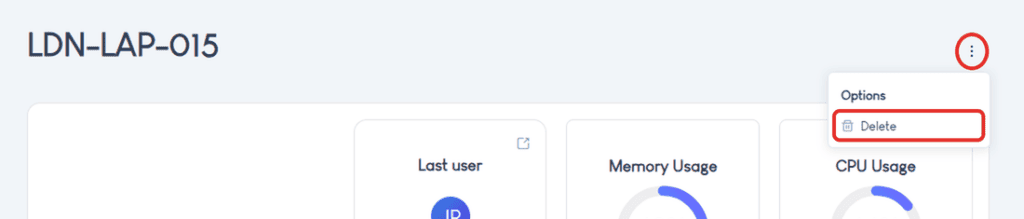
- Click the three dots (⋮) in the top right corner of the page.
- Under Options, select Delete.
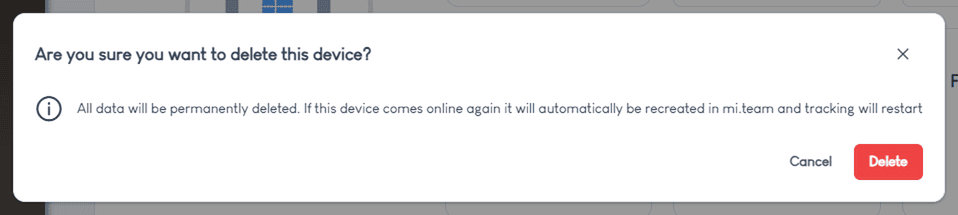
- A confirmation box will appear asking “Are you sure you want to delete this device?”. As with users, it explains that all data will be permanently deleted, and that the device will be recreated automatically if it comes online again.
- Click Delete to confirm, or Cancel to return to the device without making any changes.
Common questions
Can a deletion be undone? No. Once you confirm, the data is permanently removed and cannot be restored by your organisation or by us.
I deleted a user or device, but it has reappeared. Why? The user signed in again, or the device came back online with the mi.team software still installed, so it was recreated automatically. Remove the software from the device and then delete it again.
I cannot see the Delete option. What should I do? Your account does not have permission to delete. Please contact your organisation’s mi.team administrator.
Does deleting a user also delete their devices? No. Users and devices are deleted separately, so if a member of staff has left and their laptop is also being retired, you will need to delete both.
